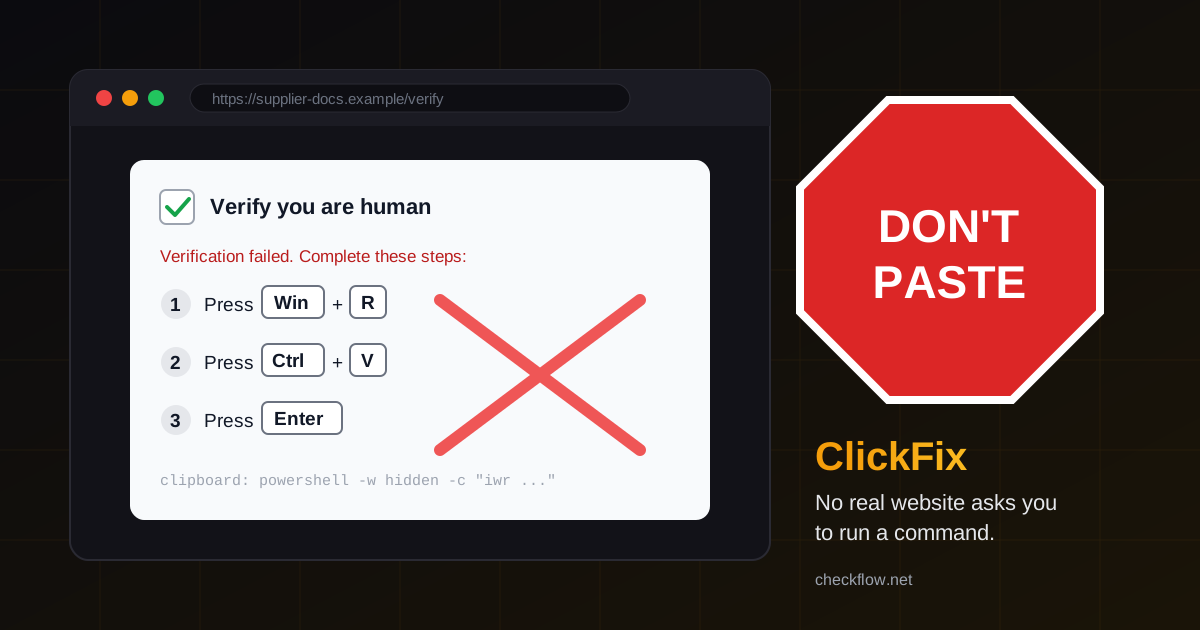
A colleague opens a supplier's website and gets a "verify you are human" box. It looks like every CAPTCHA they have clicked a hundred times, except this one has three extra steps: press the Windows key and R, press Ctrl+V, press Enter. It takes four seconds. Nothing seems to happen, the page says "verified", and they move on.
What actually happened is that they ran a command the website had quietly copied to their clipboard. That command downloaded malware, usually a password and cookie stealer. This is a ClickFix attack, and it has become one of the most common ways criminals get onto ordinary office computers.
This guide explains how ClickFix works, the forms it takes in 2026, what Apple and Microsoft have said about it, and a short checklist and response plan you can share with your team today.
What a ClickFix Attack Is
ClickFix is a social engineering trick, not a software bug. Instead of exploiting a weakness in your browser, the attacker persuades you to run their command yourself. Microsoft describes it as a technique that "attempts to trick users into running malicious commands on their devices" by taking advantage of people's habit of fixing small technical problems or passing human checks such as CAPTCHAs (Microsoft Threat Intelligence, August 2025).
Microsoft reports campaigns using the technique against thousands of business and home devices every day, delivering payloads such as the Lumma Stealer infostealer to both Windows and macOS. In the United States, the FBI and CISA list ClickFix as one of the ways the Interlock ransomware group gets its first foothold, describing victims being "tricked into executing a malicious payload under the guise of fixing an issue" (CISA advisory AA25-203A).
The reason it works is uncomfortable. Because a person types or pastes the command, many automated defences see a normal user doing a normal thing. Microsoft notes that ClickFix campaigns "could get past conventional and automated security solutions" for exactly this reason.
What the Lure Looks Like
The wording changes every few weeks, but the shape stays the same: a page invents a problem, then gives you a "fix" that involves running something.
- Fake CAPTCHA or "checking your browser" page. "Verification failed. To prove you are human: press Win+R, press Ctrl+V, press Enter." The page has already put the command on your clipboard.
- Fake document or meeting error. A shared "Word document" or video call that will not load until you copy a "fix" into PowerShell or Terminal.
- Fake browser crash (CrashFix). In January 2026 Microsoft found a variant that starts with a fake ad blocker extension impersonating uBlock Origin Lite, reached through a malicious search ad. After a delay, the extension makes the browser hang, then shows a security warning telling the user to run a command to "restore" it (Microsoft, February 2026).
- File Explorer address bar (FileFix). A page opens your computer's file upload window and asks you to paste a "file path" into its address bar. That address bar can run commands too.
- Mac Terminal instructions. Pages aimed at Mac users ask you to open Terminal and paste a line to "install" an app, a codec or a fix.
Look at any of these with fresh eyes and the giveaway is plain: a website is asking you to operate your own computer on its behalf.
The One Rule That Stops Almost All of It
No real CAPTCHA, document viewer, video call or browser update will ever ask you to press Win+R, open PowerShell, open Terminal or paste anything into the File Explorer address bar. Human checks happen inside the web page. Real updates come from the browser's own menu or the operating system's update settings.
If a page asks you to run something, stop and close the tab. That single sentence is worth putting in your onboarding notes, your team chat and the top of any IT help page you keep.
Red Flags at a Glance
- "Press Win+R" or "open Terminal" on a website. The page wants you to run code. Close it.
- A CAPTCHA with numbered keyboard steps. Real CAPTCHAs only ask you to tick a box or solve a puzzle on the page.
- A countdown or "your access will be blocked". Pressure designed to stop you thinking.
- A pop-up saying the browser is broken, with a command to fix it. Possibly a malicious extension. Check your extension list.
- "Paste this path into the address bar" in a file window. FileFix. A real upload only asks you to pick a file.
- A support "agent" asking you to paste a line into Terminal or PowerShell. The same trick, delivered over chat or a phone call.
What Changed in 2026
Macs now warn before some pastes. macOS Tahoe 26.4 added a Terminal alert reading "Possible malware, Paste blocked." Apple says it appears if you do not regularly use Terminal and you copied the command from somewhere like a website, chat agent, or messaging or email app. Separate "Malware Detected, Paste Blocked" and "Malicious Script Blocked" alerts appear when macOS recognises known malware (Apple Support).
This is a genuinely useful speed bump, but treat it as a backstop. The first alert offers a "Paste Anyway" button, and Apple's advice is not to paste unless you are certain what the command does and where it came from. People who use Terminal regularly may not see the warning at all, and it does nothing for Windows users.
The lures moved into extensions. CrashFix shows attackers using a fake extension to create the very problem they then offer to "fix". That makes your extension list part of your ClickFix defence, not a separate topic.
A Team Checklist You Can Use This Week
- Share the one rule. "No website ever needs you to press Win+R, open Terminal or paste a command. Close the tab and tell us." Repeat it at onboarding and once a quarter.
- Remove the Run dialog for people who never use it. Microsoft's guidance includes disallowing the Run dialog where it is not needed for daily work. On managed Windows PCs this is a Group Policy or device management setting, and for a non-technical team it closes the easiest ClickFix path.
- Keep Macs on macOS Tahoe 26.4 or later so the Terminal paste warning is available, and tell Mac users that "Paste Anyway" is not a button to click under pressure.
- Audit browser extensions. Remove anything nobody can explain, and install ad blockers and helpers only from the publisher's own listing, not from a link in a search ad. Our quarterly Chrome extension audit walks through it in about twenty minutes.
- Separate everyday browsing from admin work. Use a dedicated browser profile, ideally a dedicated account, for domain, billing and hosting dashboards. Chrome profiles for work shows a simple layout.
- Use day-to-day accounts without admin rights where you can, so a pasted command has less power over the machine.
- Turn on your browser's stronger phishing protection, such as the Enhanced protection option in Chrome's Safe Browsing settings, so more known malicious pages are flagged before the lure loads.
- Make reporting painless. Agree one place to say "I think I pasted something weird" with no blame attached. Speed matters far more than embarrassment.
If Someone Already Ran the Command
Assume it worked, even if nothing visible happened. Many ClickFix payloads are infostealers that quietly copy saved passwords, browser cookies and other credentials within minutes.
- Disconnect the computer from the network (Wi-Fi off, cable out). Do not keep working on it and do not sign in to anything else from it.
- From a different, clean device, change the passwords for email, password manager, banking, domain registrar, hosting and any admin accounts the person used on that computer.
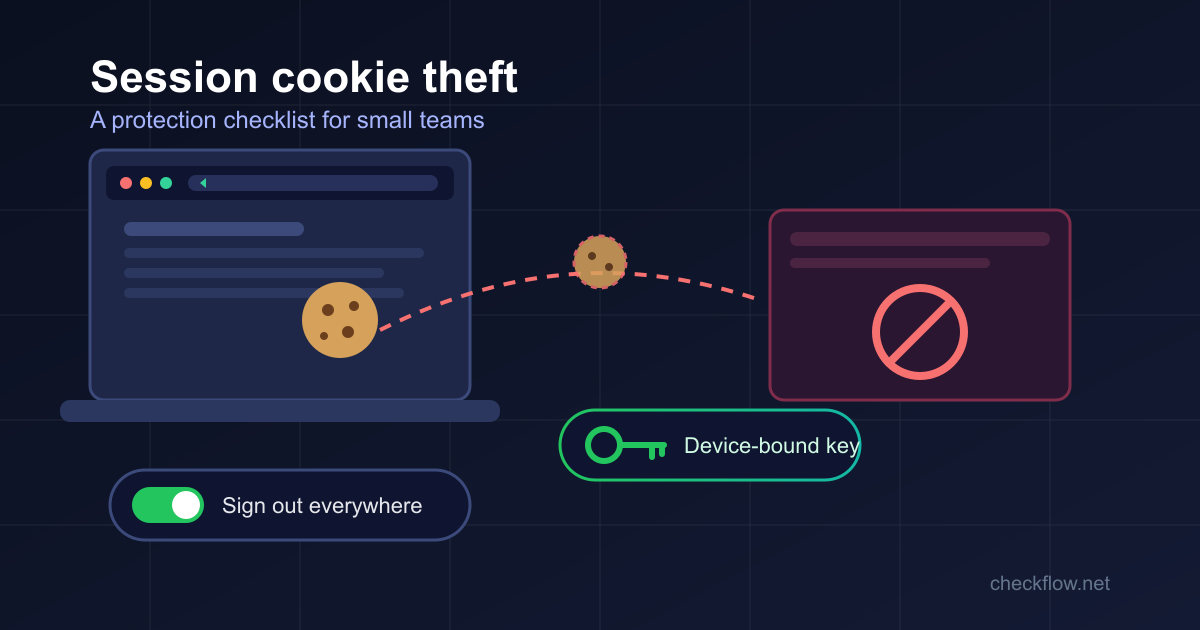
- Sign out of all sessions on those accounts, not just change passwords. Stolen session cookies can keep an attacker logged in after a password change. Our guide to session cookie theft includes a step-by-step response plan.
- Revoke app passwords, API keys and connected apps the person had access to, and review recent account activity for new forwarding rules or unfamiliar devices.
- Have the machine checked or reinstalled before it is trusted again. A quick antivirus scan is a start, not proof that it is clean.
- Write down what happened: the site, the time and a screenshot of the lure if anyone has one. It helps you warn others and spot a repeat.
Where Browser Automation Fits
Teams that automate browser work, or let AI assistants operate browser tabs, should apply the same principle: nothing that reads a web page should be allowed to run commands on the computer because the page said so. The browser automation permission review checklist covers how to keep each tool's access narrow and approved, and prompt injection in AI browser agents explains why web pages should be treated as untrusted instructions.
Frequently Asked Questions
Can a real CAPTCHA ask me to use the keyboard like this?
No. Real human checks happen inside the page: a tick box, a puzzle or an invisible background check. Any instruction to press Win+R, open PowerShell or open Terminal is a lure.
Will antivirus stop a ClickFix attack?
Sometimes, but not reliably. The attack depends on a person running the command, and the commands keep changing to avoid detection. Treat security software as one layer and the "never paste a command" habit as the main one.
Does the macOS warning mean Macs are safe now?
It makes the attack harder, not impossible. The first alert can be overridden with "Paste Anyway", and it may not appear for people who use Terminal regularly. Keep the same rule on Macs.
What if I pasted the command but did not press Enter?
Close the Run box or Terminal window without running it, then replace the clipboard by copying some harmless text. If you are not sure whether it ran, follow the response steps above to be safe.
Are phones affected?
ClickFix targets desktop computers because it relies on the Run dialog, PowerShell, File Explorer or Terminal. Phones face other scams, but this particular trick is aimed at laptops and desktops.