If you do client work, run a small business, or juggle more than one Google account, you have probably signed in to the wrong account at least once this month. A document shared from your personal Gmail. A client's ad account opened in the same window as your own. A password manager offering the wrong login for a website you use for three different businesses.
Chrome profiles fix most of that, and they cost nothing. The hard part is not creating them. It is deciding how many you need and what belongs in each one. This guide gives you a simple layout that works for freelancers and small teams, plus the habits that stop it from turning into another mess.
The Short Answer
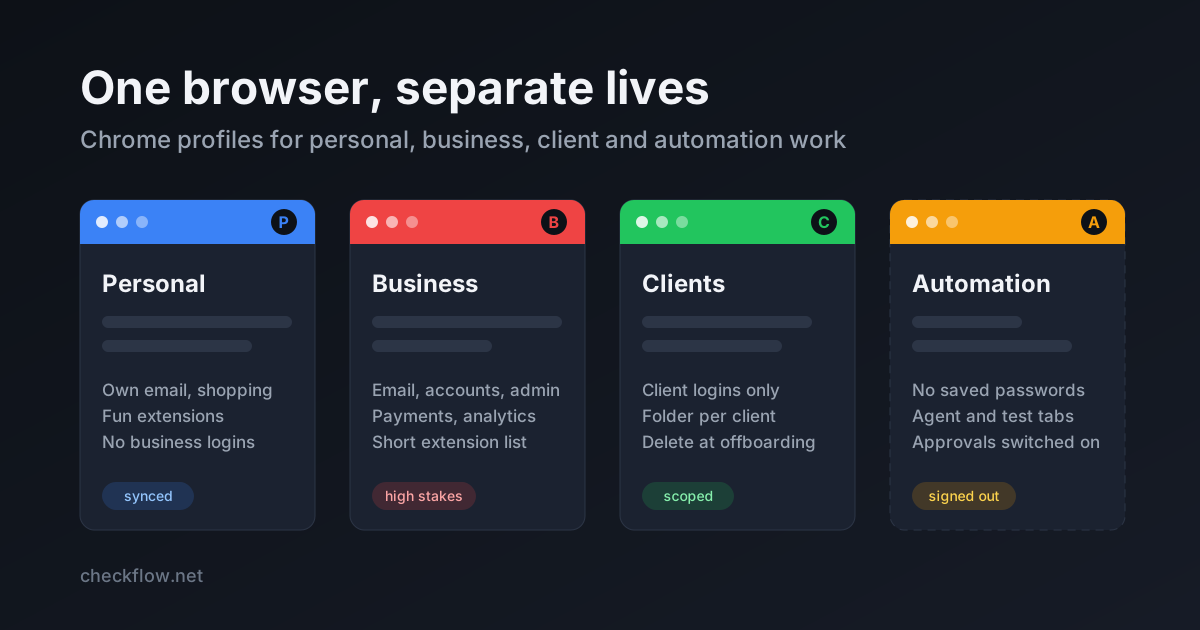
A Chrome profile is a separate set of browser data on the same computer. Google describes profiles as a way to keep "bookmarks, history, passwords, and other settings" apart, and recommends them for keeping work and personal accounts separate (Manage Chrome with multiple profiles). For most people who work in the browser, a good starting layout is three to five profiles: one personal, one for your own business, one for each client or admin role where mixing logins would cause real harm, and one plain profile for automation or testing with no saved logins at all.
What a Profile Separates, and What It Does Not
Each profile has its own:
- cookies and signed-in sessions, so you can be logged in to two different accounts on the same website at the same time, in two windows;
- saved passwords and autofill data;
- bookmarks and browsing history;
- installed extensions and their settings;
- optional sign-in to Chrome with a Google Account, which controls what syncs to your other devices.
The extensions point matters more than most people expect. An extension installed in your personal profile is not present in your work profile, and the chrome://extensions page only lists the extensions in the profile you are using right now. So a profile is also a simple way to keep a noisy or less trusted extension away from the accounts that matter.
What a profile does not do is protect you from someone who has your computer. Google is direct about this: anyone using your device can switch to any other Chrome profile on it. Profiles are a separation and organisation tool, not a lock. Your operating system's user accounts and screen lock do that job.
Profiles, Guest Mode and Incognito: Which One When
These three are easy to confuse, so here is the practical difference.
- Profile: long-lived, and remembers whatever you allow it to. Use one for any account you sign in to regularly.
- Guest mode: a temporary profile that cannot see or change other profiles and deletes its browsing history, cookies and site data when you close it. Google suggests it for letting someone borrow your computer or using a public one.
- Incognito: a temporary session started from your current profile. Chrome does not sign you in automatically and removes cookies and site data when you close all Incognito windows, but bookmarks you save and files you download stay (Browse in Incognito mode). It is handy for a quick look at how a page appears to a logged-out visitor.
Neither Guest mode nor Incognito makes you invisible to the websites you visit, your employer's network, or your internet provider. Google's own help pages say so plainly. They only limit what is kept on the device.
A useful rule: if you will need it again tomorrow, it belongs in a profile. If you need a clean, logged-out view of a page right now, Incognito is quicker.
A Profile Layout That Works for Most Small Teams
1. Personal
Your own Google account, shopping, streaming, family photos, and the extensions you enjoy but would not want near client data: coupon finders, themes, video helpers. Keep business logins out of it entirely.
2. Your business
Company email, accounting, website admin, domain registrar, payment dashboard and analytics. This is the profile where a mistake costs the most, so keep its extension list short and boring: a password manager and perhaps one or two tools the whole team depends on.
3. Clients, but only where it is worth it
You do not need a profile for every client. Create a dedicated one when at least one of these is true:
- the client gave you a login on their own domain or a separate Google account;
- you manage their ads, payments, or website admin, where acting in the wrong account has real consequences;
- you use the same platform, such as an ad manager or a store admin, for several clients and keep mixing up the accounts.
Smaller or occasional clients can share one "Clients" profile, with a bookmark folder for each.
When an engagement ends, delete that profile. Google notes that removing a profile erases its bookmarks, history, passwords and other settings from the computer, which is exactly what you want at offboarding. Export anything you are required to keep first.
4. Automation and testing
If you use an AI agent, a browser relay, or a testing extension that can click and type in a tab, give it a profile of its own. Do not save passwords in it, do not sign it in to your main email or bank, and add only the extensions the task needs. If a workflow misreads a page or clicks the wrong button, it can then only reach the accounts you deliberately put there.
This is the same advice on the CheckFlow Browser Relay page: attach only the tab the task needs, keep approval controls on for anything that submits, sends, buys or deletes, and check the result yourself. A separate profile makes those habits far easier to keep. Our browser automation permission review checklist goes deeper into what to approve before a workflow runs.
The same profile doubles as a clean room for launch checks. You see a page the way a new visitor does, without an admin toolbar or a cached login hiding a problem.
Setting It Up in Ten Minutes
- Open Chrome, select the profile icon at the top right, and choose Add Chrome profile.
- Decide whether to sign in with a Google Account. Signing in lets the profile save bookmarks, passwords and settings to that account and use them on your other devices. Skipping it keeps the profile on this computer only. For an automation profile, staying signed out is usually the better choice.
- Give it a clear name and a distinct colour. Colour is the fastest warning you have: if your business profile is red and your personal one is blue, you notice the wrong window before you start typing.
- From the profile menu, open Manage Chrome profiles and tick Show on startup if you want Chrome to ask which profile to open each time.
- Open
chrome://extensionsin the new profile and install only what that profile needs. - Create a bookmark folder for the pages you open every day in that role.
Habits That Keep Profiles Useful
- Name profiles by role, not by person. "Store admin" ages better than "Priya's setup".
- Never "just quickly" sign in to a client account from your personal profile. That is how a session and a saved password end up in the wrong place for months.
- Keep extension lists different on purpose. When you run an extension audit, review each profile separately. Because the extensions page only shows the current profile, a profile you rarely open is easy to miss.
- Write the layout down. A short note listing each profile, what it is for, and which accounts live in it helps when a teammate covers for you or you set up a new laptop.
- Tidy windows as well as profiles. Profiles stop accounts from mixing; tab groups and bookmark folders stop each profile from filling up with clutter. Our guide to managing a hundred-plus tabs covers that side.
- Remove profiles you no longer use. An old client profile full of saved passwords is a liability, not an archive.
If Your Company Manages Chrome
Some businesses manage Chrome centrally from Google Admin console. In that case your work profile may be a managed profile, and your administrator can decide which extensions are allowed and how work and personal profiles are kept apart. Google publishes a profile separation guide for administrators that explains the options. Check with your IT contact before adding your own profiles to a company laptop, and follow their policy where it differs from the layout above.
Common Mistakes
- Too many profiles. Ten profiles you never open are worse than four you use every day. Merge occasional clients into one.
- Syncing a profile you meant to keep local. Sign a client profile in to your personal Google Account and its passwords and bookmarks follow you to your phone.
- Look-alike colours. Pick colours that are obviously different, not three shades of blue.
- Treating profiles as security. They separate data. They do not lock it.
Where This Fits in a Wider Workflow
Profiles are one small part of a bigger habit: knowing exactly which account, tools and steps a piece of browser work needs, and keeping a record of what was done. The browser workflow automation guide walks through choosing a task, writing it down as a checklist, and deciding what should stay manual. A clean profile layout makes every one of those steps easier, because each checklist can start with "open the right profile".
FAQ
How many Chrome profiles should I have?
Most people who work in the browser do well with three to five: personal, business, one or two for clients or admin roles, and one for automation or testing. Add more only when mixing accounts would cause real harm.
Do Chrome profiles share extensions?
No. Each profile has its own extensions and extension settings. Installing an extension in one profile does not add it to another.
Can I use a Chrome profile without a Google Account?
Yes. Signing in is optional when you add a profile. A profile that is not signed in keeps its data on that computer and does not sync to your other devices.
Is a separate profile better than Incognito for client work?
For regular client work, yes. A profile keeps that client's sessions and saved logins in one known place. Incognito forgets everything when you close it, which tempts you to sign in again from whichever window happens to be open. Neither one hides your activity from websites or your network.
What happens when I delete a profile?
Chrome erases that profile's bookmarks, history, passwords and other settings from the computer. If the profile was signed in and syncing, also check what is saved in that Google Account before you assume the data is gone everywhere.