Most teams can tell you which apps they pay for. Very few can tell you which browser extensions are installed on the laptops that open their email, CRM, payment dashboard, and website admin every day.
That gap matters because an extension is not just a small toolbar button. Depending on what it was granted, it can read the pages you open, change what they show, and send data somewhere else. And an extension that was fine when someone installed it two years ago is not automatically fine today.
This guide is a practical extension audit for small teams: a review you can run in about an hour, repeat each quarter, and hand to a new teammate without a long explanation.
The Short Answer
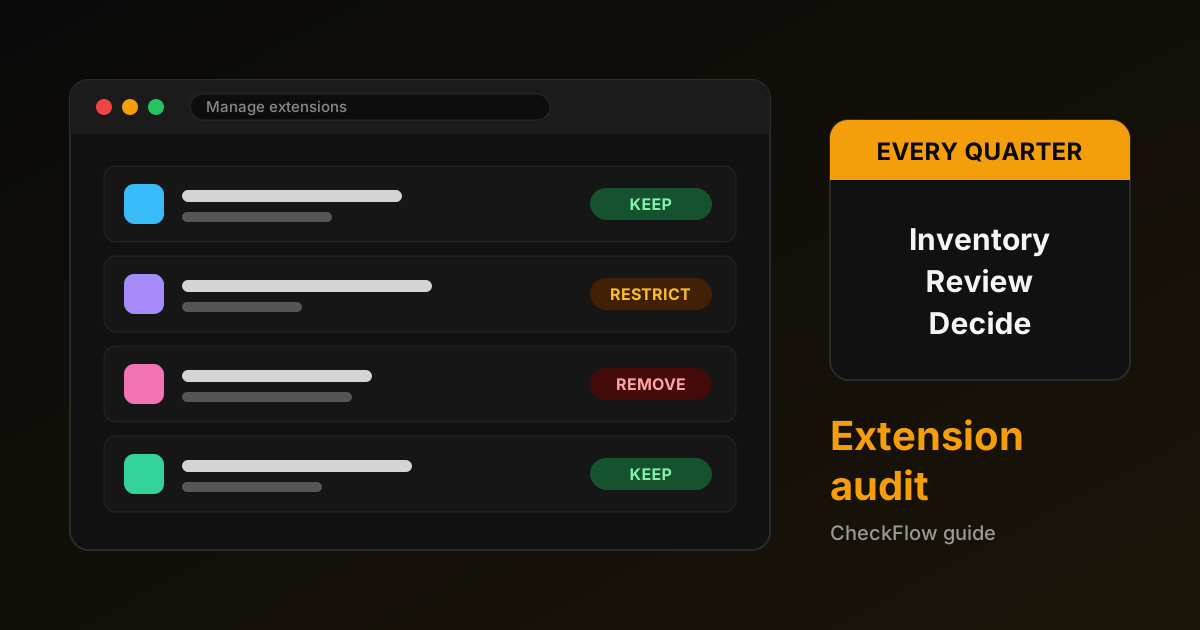
A Chrome extension audit is a scheduled review of every extension installed in the browser profiles your team uses for work. For each one, you record who installed it, what it does, what site access it has, and whether it is still needed. Then you make one of three decisions: keep, restrict (narrow its site access), or remove. If your browsers are centrally managed, you can back those decisions up with an allowlist or blocklist policy so the result does not drift.
Why Extensions Deserve a Regular Review
Three things make extensions easy to forget and worth checking.
- They update quietly. Extensions from the Chrome Web Store update in the background. A useful tool can change hands or change behavior without anyone on your team noticing.
- Permissions are approved once. The install prompt is read for two seconds and then forgotten. Nobody revisits whether a colour picker really needs to read every page you visit.
- They arrive from other places. Google notes that installing some Windows or Mac applications can also add a Chrome extension, which Chrome then asks you to enable or remove. Those are easy to click through without thinking.
This is not a theoretical risk. In July 2025, Malwarebytes reported on research into 18 extensions in the official Chrome and Edge stores, with an estimated two million-plus installs, that tracked visited pages and could redirect users. Several had worked normally for a long time and carried good reviews before the harmful behavior appeared through updates. Store review helps, but it is not a substitute for knowing what is installed on your own machines.
Before You Start: Decide the Scope
Write down three things before opening any settings page:
- Which people and devices are in scope. For a small team, that is usually everyone with access to shared business accounts.
- Which browser profiles count. Many people have a personal profile and a work profile. Audit every profile that is signed in to business tools.
- Who makes the final call. One owner should approve the keep, restrict, and remove decisions so the review ends with a result instead of a discussion.
The Extension Audit Checklist
1. Build the inventory
On each computer, open Chrome, go to the menu, then Extensions > Manage extensions. You can also type chrome://extensions in the address bar. For every extension, record its name, its ID (shown on the details page, and also the long string at the end of its Chrome Web Store URL), the profile it is in, and who on the team uses it.
A shared spreadsheet or checklist is enough. The important part is that the list exists in one place and is dated.
2. Ask "what job does this do?"
For each extension, write one sentence about the job it does for the business. If nobody can write that sentence, that is usually the clearest sign it should go. Extensions installed for a single project, a trial, or a coupon hunt tend to pile up here.
3. Check site access
Open Details for each extension and find the site access setting next to "Allow this extension to read and change all your data on websites you visit." Chrome offers three levels: only when you click the extension (labelled "On click" in many versions), on specific sites you list, or on all sites.
"On all sites" is the setting to question. A grammar tool or password manager may genuinely need broad access. A tool you use on one website, such as a store admin helper or a single social platform, usually does not. Narrowing access to the sites it needs is often the best middle ground between keeping and removing.
4. Look at the publisher and the listing
Open each extension's Chrome Web Store page. Check who publishes it, when it was last updated, whether the listing still exists, and whether the description matches what you use it for. An extension that has disappeared from the store, changed its name, or suddenly changed purpose deserves a closer look before you keep it.
5. Turn on Chrome's own warnings
Chrome already helps with part of this job. Google says Safety Check can warn about potentially harmful extensions, and that Safe Browsing's Enhanced protection warns when you try to install an extension that is not trusted by Enhanced Safe Browsing (see Install and manage extensions). Confirm each person's Safe Browsing setting during the audit and act on any Safety Check extension warnings rather than dismissing them.
6. Remove what is not needed
Removing is cheaper than reviewing. If an extension has no clear job, no active user, or a vague publisher, remove it from the extensions page. If someone later finds they really needed it, they can reinstall it and it will go through the review properly.
Also check whether any work profile allows extensions in Incognito mode. That option is off by default, and it should only be on when there is a specific reason.
7. Record the decision and the date
For every extension, write the outcome (keep, restrict, or remove), the reason in a few words, the person who decided, and the date. This short record is what turns a one-off cleanup into a repeatable control. It is also what you will compare against next quarter.
If Your Browsers Are Managed: Lock the Result In
If your team's Chrome browsers are managed through Google Admin console or device policies, you do not have to rely on people keeping their own extensions tidy. Google's ExtensionSettings policy lets an administrator:
- set a default for all extensions using
*, then allow specific extension IDs; - mark individual extensions as
blocked,allowed, or force-installed; - block extensions that request permissions your organisation does not allow, using
blocked_permissions; - show a custom message explaining why an extension is unavailable and who to contact.
The inventory you just built becomes your first allowlist. Start strict on shared admin machines and more relaxed elsewhere, and change the policy only through the same owner who signs off the audit.
If your browsers are not managed, the audit still works. It simply relies on people repeating the checklist, which is why the dated record matters.
A Simple Rule for AI and Automation Extensions
Extensions that let an AI assistant or script act inside your browser need a stricter standard than a tab manager. They can click, type, and submit as if they were you. For these, keep them in a separate browser profile with no saved banking, email, or administrator logins, attach them only to the tab the task needs, and keep approval steps on for anything that submits, sends, buys, or deletes. Our browser automation permission review checklist covers that review in detail, and the CheckFlow Browser Relay page explains the same habits for its local-only setup.
How Often to Run It
Quarterly works for most small teams. Also run a short version when:
- someone joins or leaves the team;
- a new laptop is set up;
- Chrome or Safety Check flags an extension;
- an extension you rely on changes its name, publisher, or pricing;
- you are about to give anyone new access to payment, customer, or website admin accounts.
The audit fits naturally next to other repeat checks. If you already run a website launch smoke test, the same idea applies: a short written list, a clear pass or fail for each item, and a record of who checked it. The browser workflow automation guide explains how to turn a manual review like this into a dependable routine.
What a Good Result Looks Like
After your first audit, a healthy outcome is usually fewer extensions, fewer with access to all sites, and a list where every remaining item has a named owner and a reason. You are not aiming for zero extensions. Useful tools, such as the ones in our productivity extensions roundup, can save real time. The goal is that every extension on a work browser is there on purpose.
FAQ
Are extensions from the Chrome Web Store safe?
Store listings go through review, and Google considers extensions trusted when their developers follow the Chrome Web Store Developer Program Policies. That lowers the risk but does not remove it, because extensions can change after you install them. Regular review is still worth doing.
Does turning off an extension make it safe?
A turned-off extension does not run, so it cannot read pages. But it can be switched back on and will keep updating. If you do not need it, removing it is cleaner than leaving it disabled.
What does "read and change all your data on websites you visit" mean?
It means the extension can access the content of pages you open, which may include email, documents, or dashboards. Some tools need this to work. If an extension only needs one or two websites, restrict its site access to those sites.
How long does an extension audit take?
For a small team, the first pass usually takes the longest because you are building the inventory. Later reviews are quicker, since you only check what changed since the last dated record.
Do I need special software to audit extensions?
No. Chrome's extensions page, the Chrome Web Store listing, and a shared checklist are enough for most small teams. Managed browser policies help larger or more regulated teams enforce the result.