
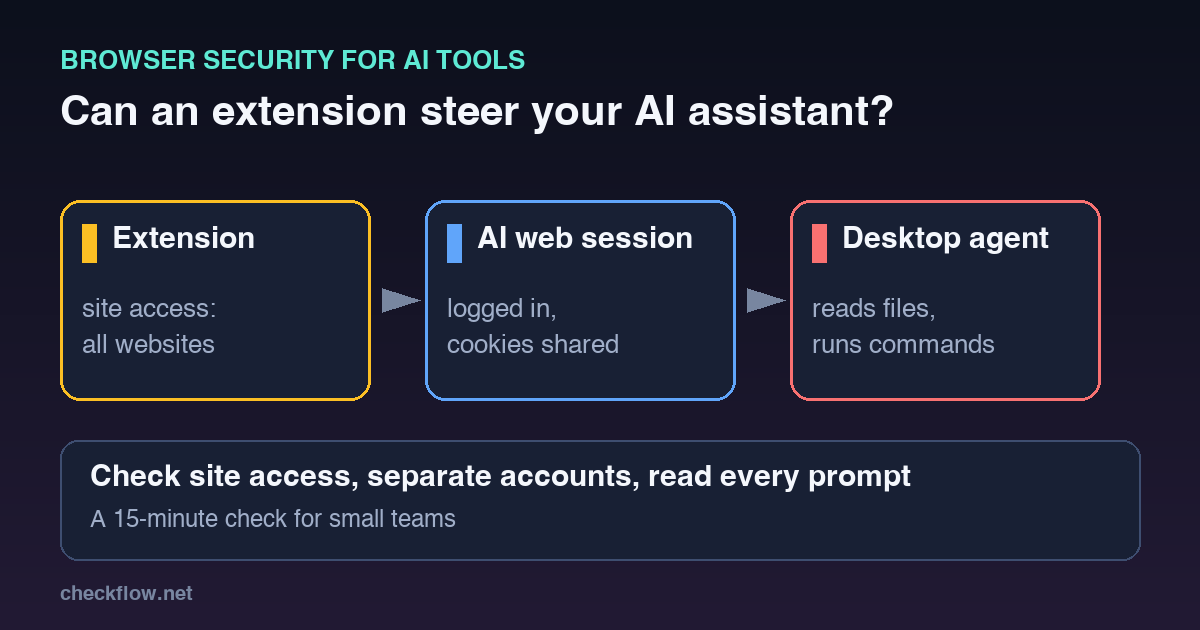
Short answer: yes, in at least one documented case. Security researchers at Forever Security showed that a browser extension allowed to run scripts on claude.ai could drive Claude Desktop, an AI agent that works on the local computer, and get it to run code, with no browser exploit involved. The lesson is bigger than one product: when an AI assistant is connected to a desktop agent, a browser extension that can act inside your logged-in session may be able to give that agent orders. This post explains what was reported, what it means for a small team, and a 15-minute check you can run today.
We cover browser safety for founders and small web teams, so this is a practical read, not a vendor ranking. It builds on our quarterly extension audit and our guide to prompt injection in AI browser agents. The difference here: the attacker does not need to trick the AI with a web page. The extension sits inside your own session and speaks as you.
What was reported
According to The Register (5 November 2026) and the researchers' own write-up, ThisBash Escape, the problem involves Claude Dispatch, a feature that lets a person send tasks from a phone or browser to Claude Desktop. Dispatch's interface and API could be reached from an ordinary logged-in session on claude.ai. So an extension with permission to control that site could submit instructions to the desktop agent as if the user had typed them.
The researchers describe a chain of six steps. In plain terms:
- The extension injects a script into claude.ai that shares the page's JavaScript context and session cookies.
- It opens the Dispatch page in a small unfocused window, which the researcher calls the only visible trace.
- Using the user's existing cookies, it finds the session of the desktop agent on the user's computer.
- It types a prompt into the composer. If the agent hesitates, follow-up prompts reassure it in the user's voice (the researchers call this "prompt forcing").
- Because the agent asks for approval before acting, the proof of concept auto-clicked "Allow" every second.
- In the demonstration, this made the agent install an npm package that opened the Calculator app.
Two details matter for risk. First, the desktop agent can be on another computer signed in to the same account, which is why the researchers warn about a personal account used on a work laptop. Second, an extension needs to be on the browser in the first place. The researcher told The Register that hijacking a legitimate extension is usually easier than tricking someone into installing a malicious one, and that this "happens a lot" through supply-chain compromise or the sale of extensions.
What is still unclear
Please read the facts with care, because this story is a few days old. The Register reports that Anthropic acknowledged the report in May as valid but closed it as a duplicate of a known issue, and that it planned to retire Dispatch by the end of October. As of 30 October, the Register says, the Claude support page still listed Dispatch as a limited beta that existing users could keep using. Anthropic did not answer the Register's questions. The researchers say the underlying design also applies to other features, such as Claude Code Remote Control and Claude Cowork sessions. We have not tested any of this ourselves, and you should check the vendor's current security notes before you decide anything. Do not treat the proof of concept as proof that every extension or every assistant is exploitable.
Why this matters beyond one product
Forever Security's own summary is useful: an authenticated web session is not, by itself, proof that the user approved a command on their machine. A browser is a restricted place. A desktop agent that can read files and run commands is not. Any link between the two is a bridge, and an extension with broad site access can stand on the browser side of it.
This applies to any assistant that can both chat in a browser and act on a computer, whichever company makes it. Ask the same question of each one you use.
The 15-minute check
1. List what is installed (3 minutes)
Open Chrome, choose More → Extensions → Manage extensions and write down every extension on the browsers your team uses for work. Chrome's own help page describes where to manage extensions and change their site access. Remove anything nobody can explain. Our extension audit checklist has a fuller version.
2. Find extensions with access to AI assistant sites (4 minutes)
For each remaining extension, open Details and read the site-access setting next to "Allow this extension to read and change all your data on websites you visit". Anything set to all sites can in principle run on the pages of your AI assistants. Where the extension does not need that, change it to a narrower setting such as specific sites. Pay most attention to extensions that are free, have changed owner, or have not been updated for a long time.
3. Separate AI accounts by purpose (3 minutes)
- Do not stay signed in to a personal AI account on a work computer, and the other way round. The reported cross-machine route depends on one account linking two computers.
- Use a dedicated browser profile, with no extensions, for AI tools that can reach files or run commands. Our post on Chrome profiles for work shows how.
- If your assistant offers a "send tasks to my computer" or remote-control feature you do not use, switch it off.
4. Keep approval prompts honest (2 minutes)
The proof of concept clicked "Allow" automatically. That means a prompt on the screen is only a safety control if a person reads it. Teach the team three rules: never approve a command you did not start, never approve in a hurry because the agent "keeps asking", and treat a small unexplained window or tab near an AI tool as a reason to stop and check. If an agent says it is "continuing what you asked" and you asked nothing, close the session.
5. Lock it in on managed browsers (3 minutes to plan)
If you manage Chrome for a team, the ExtensionSettings policy gives you three useful tools: an installation mode to allow or block named extensions, blocked_permissions to stop extensions that ask for chosen API permissions (Google's example is cookie access), and runtime_blocked_hosts to stop extensions from interacting with websites you list, including script injection and cookie access. Listing your AI assistant domains there should remove the first step of the chain described above, but test it on one machine before rolling it out, because we have not verified that setting against this specific attack.
What to write down
- The extensions approved for work browsers, who approved them and the review date.
- Which AI tools can act on a computer, and on which machines they are allowed.
- Which accounts (work or personal) may sign in where.
- Who reads the vendor's security notes and how often.
If your team also automates browser tasks, run the browser automation permission review alongside this check. If something odd happens, capture it properly: our evidence checklist shows what to save.
FAQ
Do I need to stop using Claude, or any AI assistant?
Not on the strength of this report alone. Reduce the exposure instead: fewer extensions, narrower site access, separate accounts and no unused remote-control features. Review the vendor's security notes regularly.
Does the attack work without a malicious extension?
According to the researchers, an extension that can control the assistant's website is a prerequisite. That is why extension hygiene is the first control.
Is a browser sandbox enough protection?
Not when a trusted desktop agent can be instructed from the browser side. The researchers' point is that the extension stayed within its browser permissions while the effect reached the operating system.
How can I tell if an extension has been taken over?
Often you cannot, from the outside. Signs include a change of owner or publisher, a sudden new permission request, or behaviour you did not expect after an update. That is why a short allowlist with named owners works better than checking by feel.
Does this affect other browsers?
The steps above use Chrome. Other Chromium-based browsers have similar extension pages. The underlying risk, an extension acting inside a logged-in session of a connected assistant, is not specific to Chrome.
Sources
- The Register: Anthropic won't fix a Claude Dispatch flaw that could let attackers execute remote commands across corporate boundaries (5 November 2026)
- Forever Security: ThisBash Escape, Claude Dispatch Flaw Enables Browser Extensions RCE on the OS
- The Hacker News: Malicious Browser Extensions Could Use Claude Dispatch to Run Code on Users' Computers (6 November 2026)
- Chrome Web Store Help: Install and manage extensions
- Chrome Enterprise Help: Configure ExtensionSettings policy
Related posts
 AI Tools
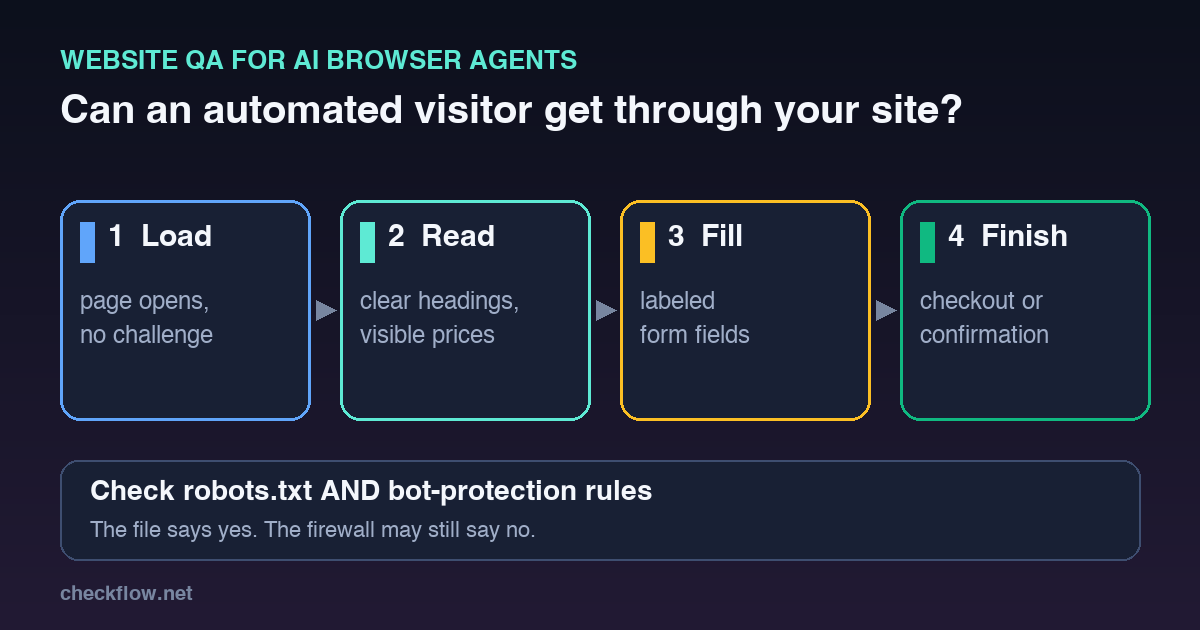
Is Your Website Ready for AI Browser Agents? A QA Checklist for Forms, Bot Rules and Checkout
Nov 7, 2026Read →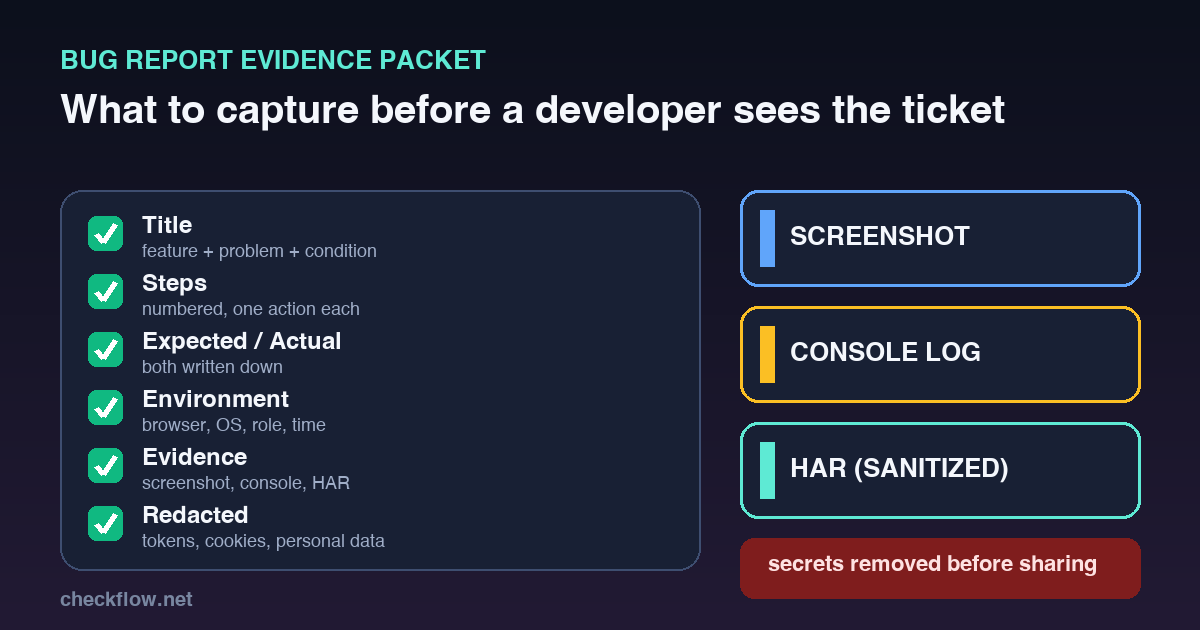 Productivity
Bug Report Evidence Checklist: What to Capture Before You Hand a Bug to a Developer
Nov 1, 2026Read → Productivity