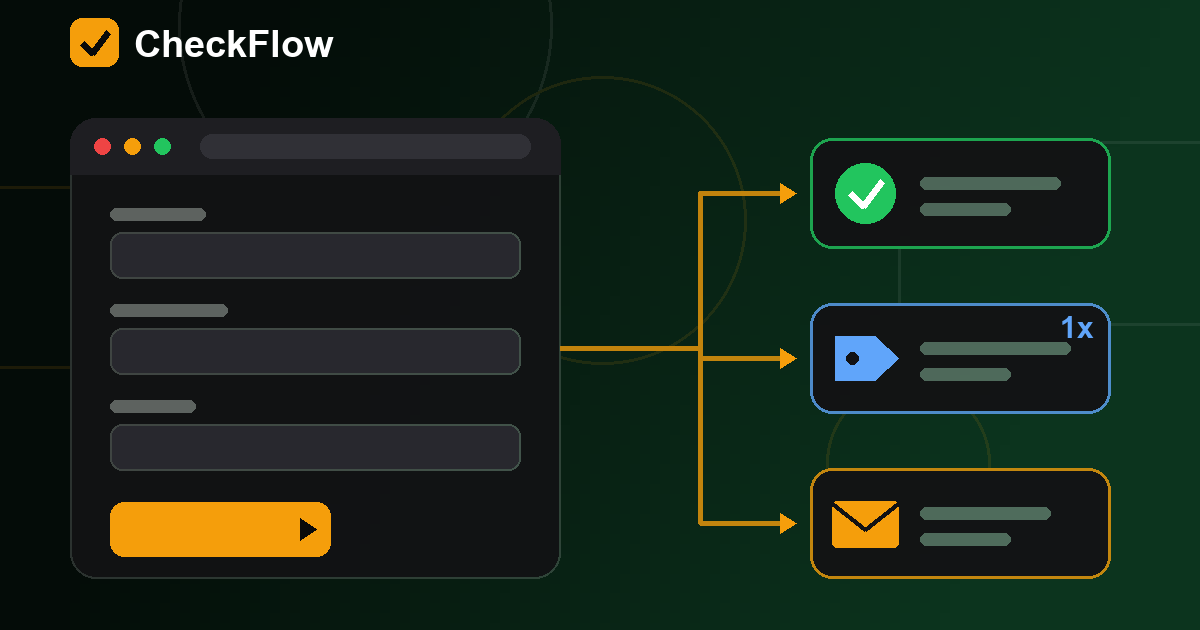
Short answer: before you send ads, email or launch traffic to a lead form, submit realistic test leads on mobile and desktop and prove five things: the form validates and submits, the visitor sees a clear success state, the lead reaches the inbox or CRM with its source attached, the analytics key event fires once per real submission, and the visitor's consent choice changes tracking without breaking the form. Keep a screenshot or log for every check, and block traffic until the critical ones pass.
A lead form can look perfect and still lose leads. The page loads and the button is visible, but mobile users cannot submit, the thank-you message never appears, the owner alert lands in spam, a CRM field is empty, or the conversion event never fires. Those are QA failures, not design failures, and they are cheapest to catch before the first paid click.
Why test the whole lead path, not just the page
Traffic you pay for or announce is attention created on purpose: search and social ads, email campaigns, WhatsApp broadcasts, partner links, directory listings and launch posts. If the form quietly fails, the team usually blames the creative, the offer or the audience. Testing the path end to end protects three things at once:
- the visitor's experience;
- the business's ability to reply quickly;
- the data you need to judge the campaign honestly.
1. Check the landing page first
Start with the page that carries people to the form. On a real phone, confirm that HTTPS works, the headline matches the ad or email promise, there is no placeholder text or broken image, and nothing covers the form: no cookie banner, chat bubble or sticky footer sitting on the submit button. Watch for layout jumps that move the button while someone is tapping.
Google's Core Web Vitals guidance describes loading, responsiveness and visual stability. On a lead page those are practical: a form that shifts, freezes or reacts slowly gets abandoned. Our website launch smoke test checklist covers the wider page-level checks.
2. Review every field
- Each field has a visible label (a placeholder is not a label).
- Required fields are marked; optional fields are truly optional.
- The phone field accepts realistic local formats, with and without a country code.
- The email field rejects obvious mistakes.
- Dropdowns, date pickers and text areas work on mobile.
- Browser autofill does not break spacing, and the mobile keyboard type fits the field.
Collect enough to reply, and no more. Every extra field is a reason to leave.
3. Test validation on both sides
Client-side validation helps visitors fix simple mistakes before they submit, as web.dev's form validation guide explains: a missing required field, an invalid email, a short phone number or an unticked consent box. It does not protect the business. The server still has to reject malformed input, spam, missing hidden fields and direct requests to the form endpoint, which is why OWASP's input validation cheat sheet treats server-side checks as the real control. A proper QA pass tests what the visitor sees and what the backend accepts.
4. Submit realistic test leads
"test@test.com" proves very little. Run a short matrix instead:
- a normal name, phone and email;
- a long business name and a message with punctuation and line breaks;
- a phone number with and without the country code;
- a free-mail address and a company address;
- an incomplete form, a double-click on submit, and a submission from a phone.
Mark each test as a lead in your CRM or inbox (for example "QA test, delete") so nobody calls it back. The pass standard is simple: the visitor gets a clear next step and the business receives complete lead data.
5. Confirm the thank-you state
Whether you use a thank-you page or an inline message, the visitor should see what happens next, when to expect a reply, and another way to reach you. Make sure no error message flashes after a successful submit. Do not overpromise either: words like "approved", "confirmed" or "guaranteed call back" should only appear if they are true.
6. Verify owner alerts and CRM delivery
A form that submits but notifies nobody is still broken. Check that:
- the alert email arrives and does not land in spam;
- the CRM record is created with every required field;
- chat or Slack alerts fire, if you use them;
- the lead carries its source, campaign, page URL and timestamp;
- reply-to works, so answering the alert reaches the visitor;
- a double submission does not create two alerts.
For small teams this is often the real conversion point. A lead nobody answers is a lost lead.
7. Check the GA4 key event
Google Analytics lets you mark important events as key events; see Google's overview About key events. For lead forms Google documents a recommended generate_lead event, though many teams use custom names such as form_submit or quote_request. Whichever you use, confirm that:
- it fires once per valid submission, never on page load;
- failed validation and double clicks do not count as leads;
- the name matches your reporting plan and the important parameters are present;
- the traffic source and landing page show up in reports;
- any ads conversion that imports the event is linked and understood.
Do not wait until the campaign ends to learn that the form worked but tracking did not.
8. Verify tags with Tag Assistant
Google Tag Assistant shows which Google tags load and which events fire as you browse. Use it to watch the tag load on the landing page, the event fire after a valid submit and not before, and to spot duplicate GA4 tags, a missing ads conversion tag, or forms inside iframes and on other domains that are not measured. Analytics bugs are invisible to visitors, so this check is the only way to catch them.
9. Test each consent state
Consent banners change what tags may do. Google's guide to troubleshooting consent mode with Tag Assistant shows how to inspect the default and updated consent states. In practice, test three runs: before any choice, after "accept", and after "reject". In every case the form must still submit and the owner must still get the lead; only measurement should change. Run each test in a fresh session, such as a separate Chrome profile or a private window, so an earlier choice does not leak into the next run. This is an operational check, not legal advice: document what happens in each state and have the right person confirm it matches your privacy policy.
10. Capture evidence
QA without evidence turns into a memory test when someone questions the numbers later. Save a screenshot of the filled form, the success state, the alert or CRM record, the Tag Assistant event and the GA4 real-time view, plus a note of the consent state, device, date, owner and pass or fail. A shared folder is enough; it just has to be findable.
11. Define what blocks traffic
Not every issue should stop a campaign, but some must. Hold traffic if:
- the form cannot submit, or mobile visitors cannot finish it;
- the owner or CRM does not receive the lead, or required fields arrive empty;
- the success state is broken;
- the key event does not fire, or fires on invalid submits;
- behaviour under each consent choice is unknown;
- spam protection blocks real people;
- the button sends visitors to the wrong page or phone number.
Cosmetic issues can wait for the next release. Broken conversion proof cannot. If you run a launch review, add these as hard gates in a website launch checklist.
12. Recheck after traffic starts
The second QA pass happens on day one of real traffic. Compare ad clicks with landing sessions, form views with submissions, and GA4 key events with CRM lead counts. Look at submit errors, spam volume and how fast the first leads were answered. If the numbers do not line up, pause spending and inspect before you scale.
FAQ
How do you test a lead form before paid traffic?
Submit realistic test leads on desktop and mobile, check validation and the thank-you state, confirm the alert and CRM record, verify the analytics key event in Tag Assistant and GA4, repeat under each consent choice, and keep evidence of every check.
Should failed validation count as a lead?
No. The key event should represent a real, valid submission. Page loads, failed validation and accidental double clicks should not be counted.
Can a form work while analytics is broken?
Yes. A visitor can submit successfully while GA4, Tag Manager or an ads conversion tag fails silently. That is why form QA and tracking QA should be tested together.
How often should lead forms be retested?
Before every campaign launch, after any change to the form, site template, tag setup, consent banner or CRM integration, and on a regular schedule for forms that run all year.
Sources
- Google Analytics Help: About key events
- Google Analytics Help: Mark events as key events
- Google Analytics: recommended events (generate_lead)
- Google Tag Assistant
- Google for Developers: Troubleshoot consent mode with Tag Assistant
- Google Search Central: Understanding Core Web Vitals
- web.dev: Help users enter the right data in forms
- OWASP: Input Validation Cheat Sheet